
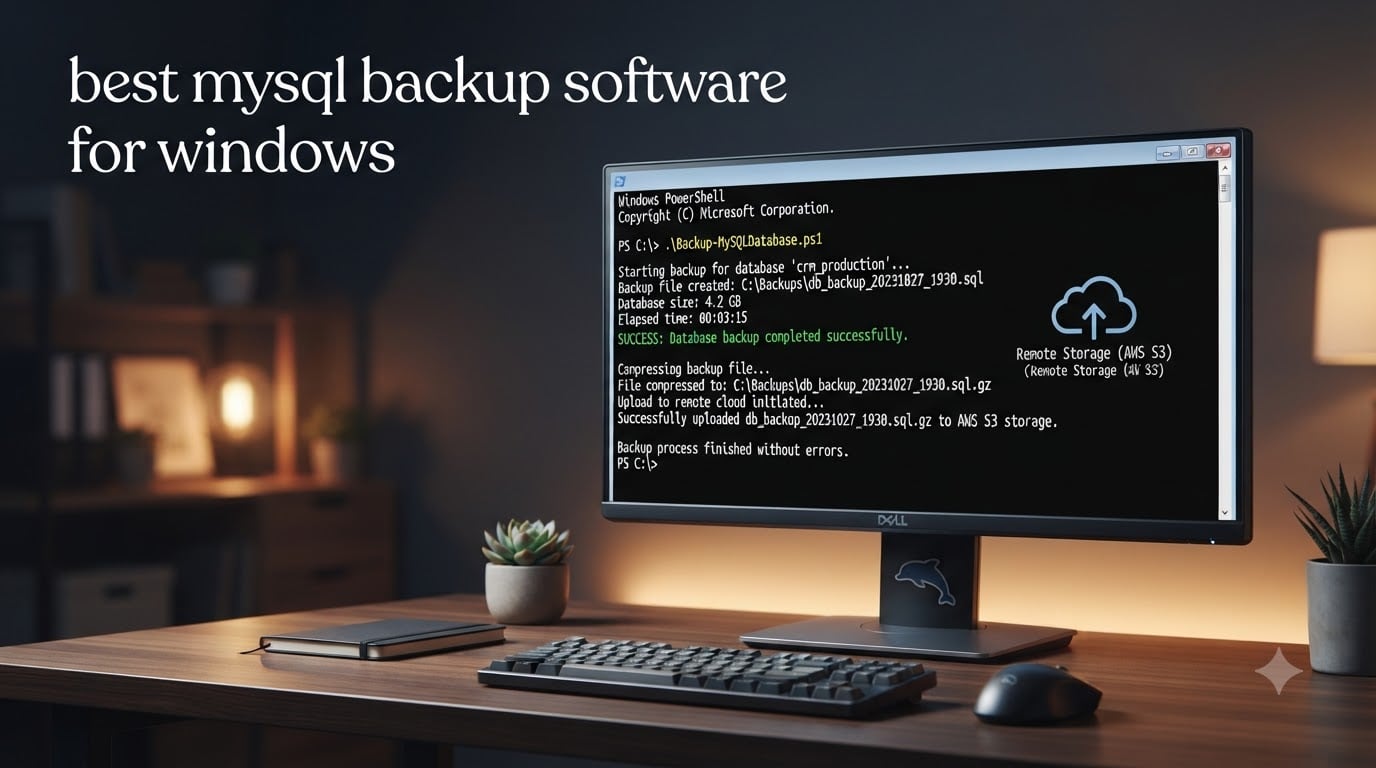
Picking the best MySQL backup software for Windows is one of those decisions that only feels urgent after something goes wrong. A failed disk, an accidental DROP TABLE, a botched migration, or a ransomware hit can permanently destroy production data if you have nothing scheduled and nothing verified. I have watched small business owners lose years of order history because they ran mysqldump “by hand” for two years and never once tested a restore.
This guide focuses on what actually works on Windows Server 2022 and 2025, Windows 11, and MySQL 5.7, 8.0, plus MariaDB 10.x and 11.x. I cover the free built-in command line (mysqldump), the free GUIs (phpMyAdmin export, MySQL Workbench, Mariabackup), and the paid tools that add scheduling, cloud destinations, encryption, and email notifications (SQLBackupAndFTP, SqlBak). By the end you should know which tool fits your database size, your Windows version, and your risk tolerance.
Last updated: September 2026 by our database team. We rebuilt this comparison after re-testing every tool on Windows Server 2025 with MySQL 8.0.36 and MariaDB 11.4.
Table of Contents
Quick Answer: Best MySQL Backup Software for Windows
If you need an answer in 30 seconds, here is the short version. The best MySQL backup software for Windows is the one that matches your database size, your recovery time objective, and your budget. For most Windows sysadmins we recommend starting with mysqldump plus Windows Task Scheduler, then moving to SQLBackupAndFTP once you need cloud destinations or notifications, and switching to SqlBak when you manage multiple servers from one dashboard.
- Best free option: mysqldump (built into every MySQL and MariaDB install)
- Best free GUI: phpMyAdmin export for databases under 1 GB
- Best free hot / physical backup: Mariabackup for MariaDB, Percona XtraBackup for MySQL
- Best paid all-in-one for Windows: SQLBackupAndFTP
- Best paid multi-server management: SqlBak
- Best built-in GUI: MySQL Workbench (limited but already installed)
MySQL Backup Software for Windows: Comparison Table (2026)
Below is a side-by-side comparison of the six tools we tested on Windows Server 2025. Yes/no cells reflect what the tool actually does on Windows, not what the marketing page claims.
| Tool | Cost | Scheduling | Encryption | Cloud Destinations | Incremental / Binlog | Hot Backup | Windows Server 2025 |
|---|---|---|---|---|---|---|---|
| mysqldump (CLI) | Free, open source | Via Task Scheduler | Manual (gpg / OpenSSL) | Manual (scripted) | No (logical only) | Single-transaction flag | Yes |
| phpMyAdmin export | Free, open source | No built-in | No | No | No | Partial | Yes (web UI) |
| Mariabackup | Free, open source | Via Task Scheduler | Manual | Manual | Yes (binlog) | Yes | Yes (with Cygwin caveats) |
| MySQL Workbench | Free | No | No | No | No | No | Yes |
| SQLBackupAndFTP | Free (2 DBs) / paid tiers | Built-in | AES-256 | S3, Google Drive, OneDrive, Dropbox, Azure, FTP, SFTP | Yes (transaction log) | Yes | Yes (native app) |
| SqlBak | Paid plans | Web + background service | AES-256 | S3, Google Drive, OneDrive, Dropbox, Azure, NAS | Yes (binlog PITR) | Yes | Yes (background agent) |
At-a-glance recommendations by scenario
- Single small database on Windows Server: mysqldump + Task Scheduler + OneDrive upload script.
- Multi-database small business on Windows: SQLBackupAndFTP free tier (2 databases) or standard plan.
- Multiple Windows servers to manage centrally: SqlBak with its web dashboard.
- MariaDB 10.x or 11.x production: Mariabackup for hot physical backups, optional SQLBackupAndFTP for cloud upload.
- Developer / staging only: phpMyAdmin export or MySQL Workbench is fine.
Free Built-In: mysqldump Command Line for MySQL on Windows
mysqldump ships with every MySQL and MariaDB server install on Windows. It creates a logical backup by generating the SQL statements needed to recreate your database and its data. For databases under a few gigabytes on Windows 11 or Windows Server, it is the safest free starting point because there is nothing extra to install and the syntax is identical across Linux and Windows.
The classic one-liner for a full database backup is mysqldump -u root -p --single-transaction --routines --triggers --events mydb > mydb_backup.sql. The --single-transaction flag keeps InnoDB tables online during the dump, which matters if your database serves live traffic. Without that flag, mysqldump uses a global read lock that pauses writes.
Strengths of mysqldump on Windows
- Already installed with MySQL or MariaDB – no extra software.
- Output is a plain .sql file you can read, grep, and edit.
- Restore with
mysql -u root -p mydb < mydb_backup.sqlworks anywhere. - Scriptable in PowerShell or batch files for full automation.
Weaknesses to plan around
- No built-in scheduling – you wire it up to Windows Task Scheduler yourself.
- No built-in compression – pipe through
gzipor7-Zipif size matters. - No built-in encryption – use
gpg --symmetricoropensslbefore uploading off-box. - Single-threaded restore, so very large .sql files can take hours to import.
If you only remember one thing about mysqldump: it is the most portable backup format you will ever use, but it is not the most convenient day-to-day.
Free GUI Option: phpMyAdmin Export for MySQL on Windows
Most hosting stacks and local dev environments come with phpMyAdmin already configured. The Export tab gives you a friendly wizard that wraps mysqldump under the hood. For small databases – say, under 1 GB – the Quick export mode with SQL output works fine for one-off backups.
The Custom export option unlocks the same flags the command line uses: --single-transaction, structure-only or data-only exports, compression to zip or gzip, and so on. You can also save the export as a PHP-serialized file or a SQL file. The restore side uses the Import tab, which accepts .sql, .csv, .zip, and other formats.
When phpMyAdmin export makes sense
- Local development databases under a few hundred MB.
- Shared hosting where you cannot install a backup agent.
- One-off exports before schema changes.
When phpMyAdmin export breaks down
- Databases over 1 GB often time out on import through the web UI.
- No built-in scheduling – the browser has to be open.
- No encryption, no cloud upload, no email notification.
- Restoring large files via the browser is the most common complaint on r/mysql.
Use phpMyAdmin for quick exports, then graduate to mysqldump in PowerShell, SQLBackupAndFTP, or SqlBak once your database outgrows a browser upload.
Free Physical Backup: Mariabackup and Percona XtraBackup on Windows
Logical backups (mysqldump) work by writing SQL. Physical backups copy the actual InnoDB data files. Physical backups are faster to restore on large databases and let you take a hot backup without long-running read locks. The two leading open-source tools are Mariabackup (built for MariaDB but works with some MySQL forks) and Percona XtraBackup (built for MySQL and Percona Server).
On Windows, both tools require either MSYS2, Cygwin, or a special Windows-compatible build. The MariaDB Foundation publishes a Windows binary that wraps Mariabackup as mariadb-backup.exe, and Percona publishes Windows binaries of xtrabackup. You run them from a regular command prompt, schedule with Task Scheduler, and stream the resulting folder to wherever you like.
Why choose a physical backup
- Restore time is much shorter than replaying a giant .sql file.
- Supports incremental backups based on InnoDB redo log.
- Can stream the backup to another server while the database is online.
- Works with point-in-time recovery if you also enable binary logging.
Windows-specific caveats
- Percona XtraBackup on Windows sometimes needs the Visual C++ Redistributable.
- Mariabackup’s
--preparestep writes large temporary files – keep at least 2x your database size free. - Folder permissions are easy to get wrong: the backup user needs read access to the data directory.
If you are on MariaDB 10.5 or later, Mariabackup is essentially built in and is the path of least resistance.
GUI Tool: MySQL Workbench Backup on Windows
MySQL Workbench ships with a Data Export and Data Import wizard on Windows. It calls mysqldump under the hood but wraps it in a wizard UI. For developers who want a click-and-go experience without leaving the MySQL Workbench IDE, it is a reasonable option.
The Data Export wizard lets you pick schemas, choose SQL or CSV output, set --add-drop-table, and schedule the export to a folder. The downside is the same as phpMyAdmin: no scheduling daemon, no cloud destination, no encryption, no notifications. It is a developer tool, not a production backup tool.
When Workbench is enough
- Pre-production schema migrations.
- Quick snapshots before upgrading a dev database.
- Sharing a test fixture with a teammate.
When you should not use Workbench
- Any production database that needs unattended daily backups.
- Any database over a few hundred MB – the wizard gets flaky.
- Anything that requires encryption or off-site storage.
Paid All-In-One: SQLBackupAndFTP for Windows
SQLBackupAndFTP is the longest-running paid MySQL backup tool for Windows. It installs as a native Windows service, connects to your MySQL or MariaDB server, and gives you a single screen to pick databases, pick destinations, schedule the job, and set email notifications.
The free tier covers up to 2 databases and is enough for a single small project. Paid tiers unlock cloud destinations (Amazon S3, Google Drive, OneDrive, Dropbox, Azure Storage, FTP, SFTP, NAS), AES-256 encryption, differential and transaction-log backups, and one-click restore.
What I like about SQLBackupAndFTP on Windows
- The installer registers itself with the Windows Start menu and services – zero configuration to start.
- “Test Connection” buttons for every database and every destination catch setup mistakes early.
- It calls
mysqldumpfor full backups and uses the binary log for incremental – a sensible default. - Compression to 7-Zip or standard ZIP, with optional AES-256 encryption before upload.
- Restore is a single screen: pick the backup, pick the target database, click Restore.
Trade-offs to be aware of
- Free tier is restricted to 2 databases – small shops outgrow it fast.
- Cloud destinations require the paid Standard tier or higher.
- Lifetime pricing is at the top tier, so annual renewals are more typical.
For a Windows server running one or two MySQL databases with no dedicated DBA, SQLBackupAndFTP is the closest thing to “set it and forget it” in this list.
Paid Web-Managed: SqlBak for MySQL on Windows
SqlBak takes a different approach. Instead of a single desktop app, it runs as a background service on each Windows server you want to back up. The service connects to your MySQL or MariaDB instance, runs the backup, and reports back to a web dashboard you log into from any browser.
The win here is central management. If you are backing up five Windows servers across two offices, you configure one job in the web UI and it applies everywhere. SqlBak also handles point-in-time recovery using binary logs, which is a feature only serious tools bother to ship correctly.
What stands out about SqlBak
- Central web dashboard for one or many servers.
- Hot backups without locking InnoDB.
- Incremental backups with binary log replay for point-in-time recovery.
- Compression with 7-Zip or ZIP, AES-256 encryption.
- Wide destination support: local folder, network share, S3, Google Drive, OneDrive, Dropbox, Azure, SFTP.
- CLI and REST API for scripted provisioning.
Where SqlBak is not the best fit
- Single-server hobby installs where the dashboard feels like overkill.
- Strict air-gapped networks with no outbound HTTPS allowed.
- Workloads that need on-prem-only management without a SaaS control plane.
For agencies, MSPs, and small businesses managing multiple MySQL instances on Windows, SqlBak is the strongest multi-server option we tested in 2026.
mysqldump vs Paid MySQL Backup Tools: Honest Comparison
This is the question that comes up most often on r/mysql and dba.stackexchange.com. The honest answer is that mysqldump does the core job – making a copy – but the paid tools add everything around the copy.
| Capability | mysqldump + Task Scheduler | SQLBackupAndFTP / SqlBak |
|---|---|---|
| Scheduled daily backup | DIY with .bat or .ps1 file | Built-in scheduler UI |
| Cloud destinations (S3, Google Drive, OneDrive) | Write your own upload script | One-click configuration |
| Email notification on success / failure | Wrap with PowerShell Send-MailMessage | Built-in SMTP settings |
| AES-256 encryption | Manual via openssl | Built-in |
| Incremental backups | Manual binlog shipping | Built-in |
| Restore time on 50 GB database | Hours (SQL replay) | Minutes (physical) to hours (logical) |
| Upfront cost | Free | Free tier or paid plan |
| Time to first working backup | 1-3 hours for a beginner | 10-20 minutes |
If you are comfortable with PowerShell and have one Windows server, the free path is fine. If you need cloud destinations, notifications, and encryption without writing code, the paid tools pay for themselves within the first incident they prevent.
How to Choose the Right MySQL Backup Tool for Your Windows Setup
Before you pick a tool, answer four questions. The answers map directly to a tool.
1. How big is your database?
Under 1 GB: mysqldump, phpMyAdmin export, or MySQL Workbench is fine. The restore is fast enough and the SQL file is easy to inspect.
1 GB to 50 GB: mysqldump still works for the backup, but the restore time becomes the bottleneck. Mariabackup or Percona XtraBackup gives you a much shorter restore window. SQLBackupAndFTP and SqlBak both handle this range comfortably.
50 GB and up: You almost certainly want a physical backup tool. Logical dumps take too long to restore. Mariabackup, Percona XtraBackup, or the SqlBak / SQLBackupAndFTP incremental modes are the right choice.
2. Do you need off-site or cloud backups?
If yes, and you do not want to write scripts, choose SQLBackupAndFTP or SqlBak. Both upload directly to Amazon S3, Google Drive, OneDrive, Dropbox, and Azure. If you are okay scripting the upload yourself, mysqldump piped through a PowerShell script can push to the same destinations for free.
3. Are you managing one server or many?
One server: SQLBackupAndFTP is the easiest. Many servers: SqlBak’s web dashboard is built for that.
4. Are you on MySQL or MariaDB?
MariaDB 10.5 and later: Mariabackup is built in. MySQL 8.0: Percona XtraBackup is the standard open-source physical backup. Either works on Windows with the right binary.
5. Do you need hot backups with zero downtime?
For InnoDB databases under 50 GB, mysqldump --single-transaction gives you a hot logical backup. For larger databases or stricter SLAs, Mariabackup, Percona XtraBackup, SQLBackupAndFTP, and SqlBak all offer true hot physical backups.
How to Set Up Automated MySQL Backups on Windows (Step-by-Step)
This tutorial shows the free path: mysqldump + PowerShell + Windows Task Scheduler. It works on Windows 11, Windows Server 2022, and Windows Server 2025. The whole setup takes about 20 minutes.
Step 1: Create a backup folder
Pick a folder with enough free space. A reasonable default is C:MySQLBackups on a dedicated disk, or D:mysql-backups if you have a second volume. Create the folder and give the user that will run the scheduled task write access to it.
Step 2: Store the MySQL password securely
Never put your MySQL root password in plain text inside a script. Use Windows Credential Manager instead. In PowerShell run:
cmdkey /add:MySQLBackupTarget /user:backup_user /pass:YOUR_PASSWORD
Replace backup_user with a MySQL user that has the SELECT, LOCK TABLES, RELOAD, and SHOW VIEW privileges. Grant minimum scope: only on the databases you back up.
Step 3: Write the backup PowerShell script
Save this as C:ScriptsBackup-MySQL.ps1:
$env:MYSQL_PWD = (cmdkey /list:MySQLBackupTarget | Select-String 'User:').ToString().Split(':')[1].Trim()
$date = Get-Date -Format 'yyyy-MM-dd_HHmm'
$out = "C:MySQLBackupsmydb_$date.sql"
mysqldump -u backup_user --single-transaction --routines --triggers --events mydb | gzip > "$out.gz"
This creates one compressed .sql.gz file per run, named with the timestamp.
Step 4: Add retention so old backups do not fill the disk
Append this to the script:
Get-ChildItem 'C:MySQLBackupsmydb_*.sql.gz' | Where-Object { $_.LastWriteTime -lt (Get-Date).AddDays(-14) } | Remove-Item
This keeps 14 days of backups and deletes older files automatically.
Step 5: Schedule it with Windows Task Scheduler
Open Task Scheduler, click Create Task, name it “Daily MySQL Backup”. Under Triggers, set a daily schedule – 02:00 is a common pick. Under Actions, set Program/Script to powershell.exe and Arguments to -ExecutionPolicy Bypass -File "C:ScriptsBackup-MySQL.ps1". Under General, choose “Run whether user is logged on or not” and tick “Run with highest privileges”.
Step 6: Verify the first run
Right-click the task and choose Run. Wait a minute, then check C:MySQLBackups for a new .sql.gz file. If it is there, the schedule will repeat it every day. If it is empty, open Task Scheduler History and look for the error code.
Step 7: Add an off-site copy (optional)
Add a second script that uses rclone to copy C:MySQLBackups to OneDrive, Google Drive, S3, or Dropbox. rclone is free and supports every major cloud destination. This satisfies the 3-2-1 backup rule: 3 copies, on 2 media, with 1 off-site.
For users who do not want to maintain PowerShell scripts, SQLBackupAndFTP and SqlBak automate steps 1 through 7 inside their own installers.
How to Restore a MySQL Backup on Windows
A backup you have not tested is not a backup. Restore your mysqldump output with the mysql command line client:
mysql -u root -p mydb < C:MySQLBackupsmydb_2026-09-12_0200.sql
For gzip-compressed files:
gunzip < C:MySQLBackupsmydb_2026-09-12_0200.sql.gz | mysql -u root -p mydb
Restoring a single database from a full mysqldump file
If your .sql file contains multiple databases, you can extract just the one you need:
sed -n '/^-- Current Database: `mydb`/,/^-- Current Database: `/p' mydb_full.sql > mydb_only.sql
On Windows without sed, use PowerShell Select-String with a similar pattern. SQLBackupAndFTP and SqlBak both have one-click restore interfaces that skip the regex.
Restoring from a physical backup (Mariabackup or XtraBackup)
Physical backups restore by copying files back into MySQL’s data directory after running the prepare step. The exact commands depend on whether you are on MariaDB or MySQL, and the official docs are the right place to start. For most teams, the restore time on a 50 GB+ database is the reason they chose a physical backup in the first place.
Backup Verification Checklist for MySQL on Windows
Run through this list once a quarter. It is the single most common gap we see in small Windows shops.
- Open the latest .sql or .sql.gz file and confirm it is not zero bytes.
- Restore the backup to a separate test MySQL server (or a different port on the same server).
- Run
SHOW DATABASESandSHOW TABLESagainst the restored copy. - Spot-check row counts on the three largest tables.
- Verify that stored procedures, triggers, and views are present.
- Time the restore end to end. If it takes longer than your recovery time objective, consider a physical backup tool.
- Confirm the off-site copy exists and is the same size as the local copy.
- Test your restore script by actually using it – not by reading it.
Frequently Asked Questions
What is the best MySQL backup software for Windows?
The best MySQL backup software for Windows depends on your database size and needs. For free use, mysqldump plus Windows Task Scheduler is the standard starting point. For an all-in-one paid experience with cloud destinations, encryption, and email notifications, SQLBackupAndFTP is the strongest single-server choice. For managing multiple servers from one dashboard, SqlBak is the best fit. Mariabackup or Percona XtraBackup are the best free options for physical hot backups on larger databases.
How do I backup a MySQL database on Windows?
Open a command prompt, navigate to C:u005cProgram Filesu005cMySQLu005cMySQL Server 8.0u005cbin, and run mysqldump -u backup_user -p u002du002dsingle-transaction u002du002droutines u002du002dtriggers mydb u0026gt; C:u005cMySQLBackupsu005cmydb.sql. Replace backup_user with a MySQL user that has SELECT, LOCK TABLES, RELOAD, and SHOW VIEW privileges on mydb. Compress with gzip or 7-Zip for storage savings. Schedule the command with Windows Task Scheduler for daily unattended runs.
Is there a free MySQL backup tool for Windows?
Yes. mysqldump is built into every MySQL and MariaDB install on Windows and is completely free. phpMyAdmin export and MySQL Workbench provide free GUI wrappers around the same engine. Mariabackup (for MariaDB) and Percona XtraBackup (for MySQL) are free open-source physical backup tools that work on Windows with their published Windows binaries. None of these have built-in scheduling or cloud destinations, so you wire those up yourself with Task Scheduler and a script.
How do I schedule MySQL backups in Windows Task Scheduler?
Create a PowerShell script that calls mysqldump and saves the output to a folder. Open Task Scheduler, choose Create Task, give it a name, set a trigger (for example, daily at 02:00), and set the action to powershell.exe with arguments -ExecutionPolicy Bypass -File C:u005cScriptsu005cBackup-MySQL.ps1. Tick Run whether user is logged on or not and Run with highest privileges. Right-click the task and Run to verify the first backup writes successfully before relying on the schedule.
What is the difference between mysqldump and a paid MySQL backup tool?
mysqldump produces a logical SQL file that recreates your database when replayed. It is free and ships with MySQL, but it has no built-in scheduling, encryption, cloud destinations, or email notifications – you wire those up yourself with Task Scheduler and PowerShell. Paid tools like SQLBackupAndFTP and SqlBak wrap mysqldump or use physical backups, then add a scheduling UI, AES-256 encryption, one-click cloud uploads to S3, Google Drive, OneDrive, Dropbox, and Azure, email notifications on success or failure, and one-click restore. The core backup is similar – everything around it is what you pay for.
Can I backup MySQL to the cloud from Windows?
Yes. SQLBackupAndFTP and SqlBak both upload directly to Amazon S3, Google Drive, OneDrive, Dropbox, and Azure Storage from a Windows server. With mysqldump you can pipe the backup through rclone (free, open source) to any of those destinations and schedule it with Task Scheduler. For sensitive data, enable AES-256 encryption on the backup before upload – either through the paid tool’s UI or by wrapping the file with openssl or gpg before sending.
How do I restore a MySQL backup on Windows?
For a mysqldump SQL file, open a command prompt and run mysql -u root -p mydb u0026lt; C:u005cMySQLBackupsu005cmydb_backup.sql. For a gzip-compressed dump, pipe the decompressed output into mysql: gunzip u0026lt; mydb_backup.sql.gz | mysql -u root -p mydb. For a physical backup from Mariabackup or Percona XtraBackup, run the prepare step and copy the files into MySQLu0026#039;s data directory, then start MySQL. SQLBackupAndFTP and SqlBak offer one-click restore interfaces that hide these commands behind a UI. Always test the restore on a separate server at least once per quarter.
Conclusion: Picking the Best MySQL Backup Software for Your Windows Server
After comparing the six tools above on Windows Server 2025, here is how I would recommend a typical reader approach this. Start with mysqldump plus Windows Task Scheduler if you have one small database, a bit of PowerShell comfort, and time to set things up. Move to SQLBackupAndFTP the day you find yourself wanting cloud destinations, AES-256 encryption, or email notifications without writing code. Move to SqlBak when you are managing multiple Windows servers and want a single web dashboard. Add Mariabackup or Percona XtraBackup when your database grows past 50 GB and restore time starts to matter.
Whichever tool you choose, the real work is the same: configure scheduled daily backups, send at least one copy off-site, and restore from a backup on a separate test server at least once a quarter. The best MySQL backup software for Windows is the one you actually verify, not the one with the nicest dashboard.
Pick your tool, schedule the first job today, and come back next quarter to confirm the restore still works. That is the loop that protects your data.