
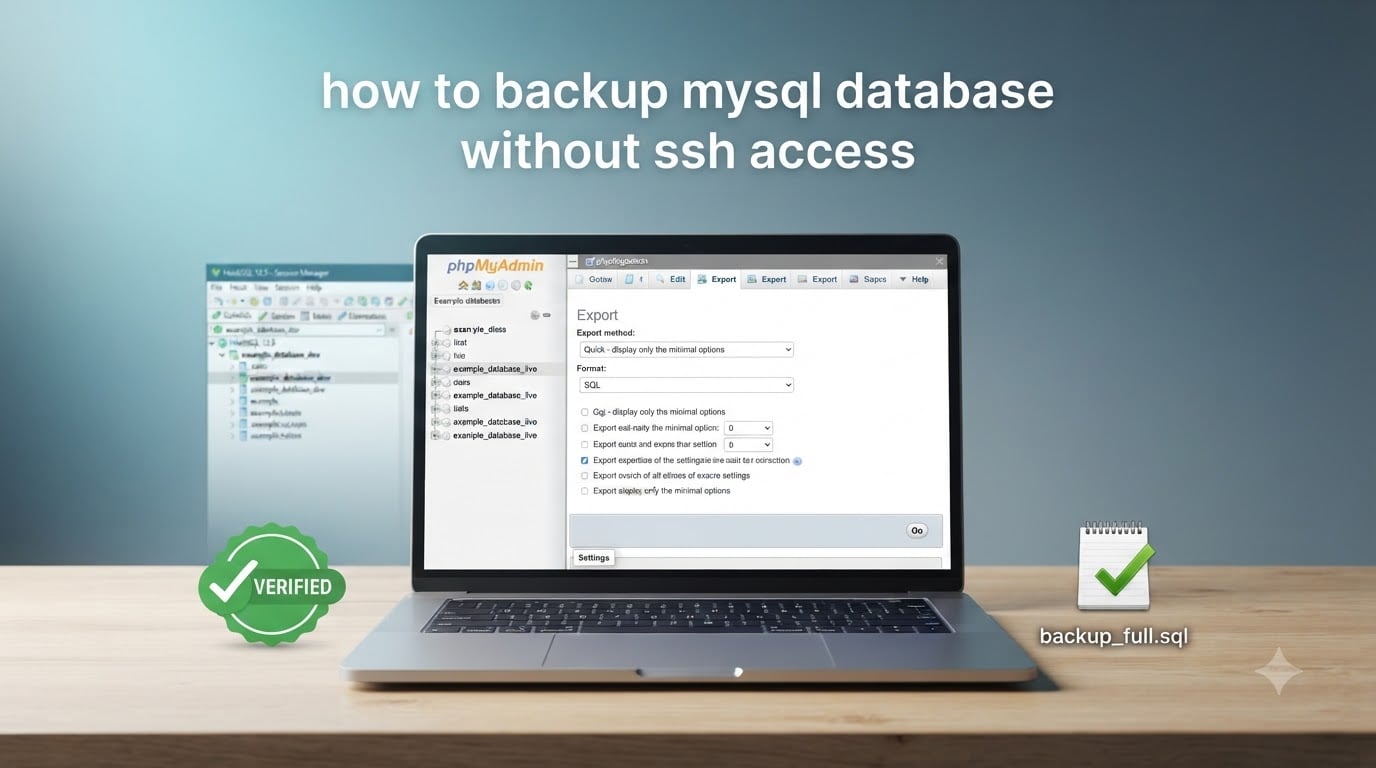
Yes, you can absolutely backup a MySQL database without SSH access. Whether your hosting provider disabled shell access, you are on a managed WordPress plan, or you run a cloud database like AWS RDS, several reliable methods still produce a clean, restorable .sql file. In this guide, I will walk you through five proven methods to backup MySQL without SSH, plus the exact commands to restore from those backups when you need them.
I have used every one of these methods on real production sites running shared hosting, VPS control panels, and managed MySQL in the cloud. Each one has a clear best-use case, and I will mark which method I reach for first based on database size, my operating system, and how often I need to repeat the backup.
Table of Contents
Quick Answer: 5 Ways to Backup MySQL Without SSH
Here is the scannable list you came for. Each method produces a standard .sql dump that you can restore into any MySQL or MariaDB server.
- phpMyAdmin export — works on almost every shared host, ideal for small to medium databases.
- cPanel Backup Wizard (or JetBackup) — one-click full backup, including the database.
- Remote
mysqldumpover TCP — runmysqldump -hfrom your local machine using the-hflag. - Desktop GUI client — HeidiSQL on Windows, MySQL Workbench, DBeaver, TablePlus, or Sequel Ace on macOS.
- Web-based backup scripts — Adminer or a single PHP file you upload to your site for automated, no-shell backups.
If you have a database under roughly 100 MB and a stock cPanel or shared host, start with Method 1. If your host blocks or rate-limits phpMyAdmin, or you want to script the backup, jump to Method 3. If you prefer a visual interface, Method 4 has the GUI client that matches your operating system.
Method 1: Backup MySQL With phpMyAdmin (Export to .sql)
phpMyAdmin is the most widely available tool for backing up MySQL without SSH. It ships with cPanel, Plesk, DirectAdmin, XAMPP, MAMP, and most shared-hosting dashboards, so there is a very good chance you already have it. The export produces a single .sql file that recreates tables, indexes, and data on any new server.
Step-by-step: Quick phpMyAdmin export
- Log into your hosting control panel and open phpMyAdmin.
- Click your database name in the left sidebar to select it (do not pick individual tables unless you only want part of the DB).
- Click the Export tab at the top.
- Choose Quick — display only the minimal options as the export method.
- Set format to SQL.
- Click Go. Your browser downloads a file named something like
yourdb.sql.
Custom export for larger or picky databases
When the Quick method leaves out options you need — compressed output, structure-only backups, or specific table selections — switch to the Custom method. Tick Add DROP TABLE IF EXISTS to make the dump safe to import over an existing database, and tick Save output to a file and choose gzipped for anything over about 50 MB.
One heads-up from forum discussions: the phpMyAdmin Quick export adds CREATE TABLE without DROP TABLE. That keeps non-empty tables intact but can fail on existing tables during restore. If your restore target already has a table with the same name, run the Custom export and enable DROP TABLE IF EXISTS.
How to restore a phpMyAdmin .sql backup
- Open phpMyAdmin and select the destination database.
- Click the Import tab.
- Choose the
.sql(or.sql.gz) file from your computer. - Set the format to SQL and click Go.
phpMyAdmin exports are the simplest, but they break down past roughly 100 MB because of upload_max_filesize, post_max_size, and PHP timeout limits. For multi-gigabyte databases, switch to Method 3 or 5.
Method 2: Backup MySQL From cPanel (Backup Wizard or JetBackup)
If your host runs cPanel, the Backup Wizard generates a full account backup that includes your database files compressed into a single archive. JetBackup, if your host has it installed, adds historical snapshots you can download directly. Both work entirely inside your browser, with no SSH required.
Step-by-step: cPanel full backup
- Log into your cPanel account.
- Open Files → Backup (or Files → Backup Wizard → Backup → Full Account).
- Under Download a MySQL Database Backup, click your database name. The browser downloads a
.tar.gzarchive. - For a full site backup, click Generate / Download a Full Website Backup on the same page.
Restore through cPanel
From cPanel → Files → Backup → Restore, upload the .tar.gz archive and cPanel decompresses the database file back into the right MySQL database. Hosts that run JetBackup expose an additional database-level restore point that lets you pick a date in the calendar and restore only the database.
Forum users consistently report that JetBackup historical restores are the easiest safety net for shared hosting: even when the rest of this guide does not apply to you, JetBackup gives you a one-click rollback to yesterday, last week, or last month.
Method 3: Remote mysqldump Without SSH (Direct TCP)
This is the method I reach for when I want a scriptable, repeatable backup from a remote MySQL server. It looks like a normal mysqldump command, except you add -h hostname to point at the remote server. You do not need shell access on the remote host — only network access on TCP port 3306 (or whatever port your host exposes) plus a database user with at least SELECT and LOCK TABLES privileges.
Step 1: Allow remote connections to your MySQL host
Shared hosts block remote MySQL by default. To enable it, log into your control panel and look for a feature called Remote MySQL (cPanel) or Allowed Hosts (DirectAdmin). Add the public IP address of the machine that will run the dump. Find your IP by visiting whatismyip.com from the same network.
Security warning: Whitelisting your IP only, not %, limits the exposure. If your provider offers a SSH tunnel or VPN for MySQL, prefer that over opening port 3306 to the internet.
Step 2: Run the remote mysqldump command
On your local Linux, macOS, or Windows command line (with the mysqldump client installed), run:
mysqldump -h db.example.com -P 3306 -u your_user -p --single-transaction --routines --triggers your_db > your_db.sql
Replace db.example.com, your_user, and your_db with your real values. The -p flag makes the shell prompt for the password so it never appears on screen. Flags worth knowing:
--single-transaction— keeps InnoDB tables consistent without locking writes. Always use this on busy sites.--routines— includes stored procedures and functions.--triggers— includes triggers (default, but spelled out for clarity).--no-data— exports structure only (handy for delta imports).--add-drop-table— addsDROP TABLE IF EXISTSstatements.
Step 3: Restore the remote mysqldump output
To restore, pipe the .sql into the destination MySQL instance with the standard client:
mysql -h localhost -u root -p your_db < your_db.sql
If the destination database already has tables, add the --add-drop-table flag during the original dump or edit the file manually before the import.
Method 4: Backup MySQL With a Desktop GUI Client
A desktop GUI client is the most comfortable option if you want to browse tables, save to local file, and schedule backups from a desktop scheduler (Task Scheduler on Windows, launchd on macOS). All of the tools below connect over TCP port 3306, which means they need the same remote-access whitelist as Method 3.
HeidiSQL (Windows, free)
HeidiSQL is the go-to Windows client for backing up a MySQL database without SSH. Forum threads about backup mysql database without ssh access windows almost all point to HeidiSQL because it is free, handles multi-gigabyte databases without timing out, and includes an export to .sql in one click.
- Download HeidiSQL from the official site and install it.
- Click New, set the network type to
MySQL (TCP/IP), and enter host, user, password, and port. - Click Save, then Open to connect.
- Right-click your database, choose Export database as SQL.
- Pick Create one file per database, select DROP + CREATE, and click Export to save the
.sqlfile locally.
MySQL Workbench (Windows, macOS, Linux)
- Open MySQL Workbench and start a new connection to your remote server.
- Go to Server → Data Export.
- Pick the schema, choose Export to Self-Contained File, and click Start Export.
Workbench’s data export is reliable and has a clear progress bar that scales to multi-gigabyte dumps.
TablePlus and Sequel Ace (macOS)
Mac users typically search for backup mysql database without ssh access mac and end up at TablePlus or Sequel Ace. Both have a one-click “Export database as SQL” entry under the database context menu, with optional gzip compression and DROP+CREATE statements.
DBeaver (cross-platform)
DBeaver is a free, Java-based client for Windows, macOS, and Linux. The flow is similar: connect to your remote MySQL over TCP, right-click the database, choose Tools → Dump Database, save the .sql, and copy it locally. DBeaver is a safe pick if you manage MySQL alongside PostgreSQL or SQLite from the same machine.
Method 5: Handle Large Databases Without SSH
If your database is bigger than what phpMyAdmin can handle (anything from 100 MB to tens of GB), the workflow above is going to time out or hit a memory limit. These workarounds keep the SSH-free guarantee while still producing a portable dump file.
Chunked export with HeidiSQL or Workbench
Both HeidiSQL and MySQL Workbench can export table-by-table with a progress bar that does not crash on huge tables. HeidiSQL in particular lets you run multiple export jobs in parallel, which materially shortens the time on multi-GB databases.
BigDump and similar PHP tools
BigDump is a single PHP script that imports a large .sql in pieces, sleeping between chunks to stay under the web-server timeout limit. Upload the script via FTP, point it at your .sql file, and open the page in your browser. This solves the restore side; for the export side you still need one of the other methods to produce the file.
Bump up timeouts and packet sizes
If you control php.ini or .htaccess, increase max_execution_time, upload_max_filesize, and post_max_size before re-running a phpMyAdmin export. Many shared hosts expose these via the PHP settings or MultiPHP INI Editor tool in cPanel, so you can avoid any SSH access while raising the limits.
Cloud-managed MySQL with no shell access
For AWS RDS, Google Cloud SQL, PlanetScale, and DigitalOcean Managed MySQL, shell access is impossible by design. The supported backup path is the provider’s snapshot or automated-backup API. RDS exposes aws rds create-db-snapshot, PlanetScale exposes branching, and Google Cloud SQL exposes a daily automated backup you can restore to a new instance.
Security Warnings When Enabling Remote MySQL
Opening MySQL to the internet is the single riskiest step in this guide. Treat remote MySQL access the way you would treat any other database exposed on TCP/3306 — limit it, log it, and never leave it on longer than needed.
- Whitelist your current public IP only, never
%.%means the open internet. - Use a database user with the minimum privileges the backup needs (usually
SELECT,LOCK TABLES,SHOW VIEW,EVENT,TRIGGER). - Prefer TLS connections if your provider supports them; many hosts default to plain text.
- Rotate the backup user’s password after you finish dumping.
- If your host offers a built-in scheduled backup (JetBackup, Acronis, R1Soft), use it instead of remote access.
If your provider does not let you whitelist a single IP, ask whether they offer an SSH-tunneled alternative — that is normally safer than exposing port 3306.
Frequently Asked Questions
What is the best way to backup a MySQL database?
The best way to backup a MySQL database depends on size. For databases under 100 MB, phpMyAdmin export or cPanel Backup Wizard is fastest and needs no extra software. For larger databases or recurring backups, use a remote mysqldump command with the -h flag, run from your local machine, or connect with a desktop GUI client such as HeidiSQL (Windows) or TablePlus (macOS). All methods produce a portable .sql file you can restore into any MySQL or MariaDB server.
How can I back up my MySQL database?
Pick one of five methods: (1) phpMyAdmin export to a .sql file, (2) cPanel Backup Wizard or JetBackup download, (3) remote mysqldump -h your_host -u user -p your_db, (4) a desktop GUI client such as HeidiSQL, MySQL Workbench, or TablePlus, or (5) a web-based backup script such as Adminer. None of these require SSH access on the database server.
How to backup a MySQL database using command-line?
Install the mysqldump client on your local machine and run: mysqldump -h your_host -P 3306 -u your_user -p u002du002dsingle-transaction u002du002droutines u002du002dtriggers your_db u0026gt; your_db.sql. The -h flag tells mysqldump to talk to a remote server over TCP, so you do not need SSH access on the server itself. Replace your_host, your_user, and your_db with your actual values and enter your password when prompted.
What is the best backup software for a MySQL database?
For most people the best backup software for a MySQL database is the one already installed on the host: phpMyAdmin for casual exports, JetBackup or Acronis in cPanel for scheduled snapshots, and HeidiSQL, MySQL Workbench, DBeaver, or TablePlus on the desktop for scripted and recurring backups. All four desktop clients are free or have a free tier and work without SSH access on the remote server.
Final Verdict: Pick Your MySQL Backup Method
Here is how to backup MySQL database without SSH access in one line per scenario. Use phpMyAdmin for small databases under 100 MB on shared or managed hosts. Use the cPanel Backup Wizard or JetBackup when you want a one-click, host-managed safety net. Use a remote mysqldump -h command for scripted, repeatable, or large backups. Use HeidiSQL, MySQL Workbench, or TablePlus when you prefer a desktop GUI. And use a chunked PHP importer like BigDump for the largest databases during restore.
Run the backup now, before you need it, and store the .sql file somewhere off the same server (cloud storage, local disk, or version control). A backup that lives next to the database it backs up is only half a backup.